


WinAgentGPT — What It Is
The short version
WinAgentGPT is a Windows application that turns an ordinary AI chat model into something that can actually operate the computer. You talk or type; the AI answers with real, runnable instructions; the app catches those instructions, asks your permission, runs them, and hands the result straight back to the AI so the conversation continues with the machine’s actual response in it.
The central mechanism
The AI is not an API key buried in a config file. It is a real chat session, in a real browser window, embedded inside the app. You can see it. You can read what it said. You can scroll back.
The app watches that conversation. When the model’s reply contains code wrapped in agreed markers — @PowerShellGPT@ for Windows commands, @JsGPT@ for browser JavaScript — the app recognises it, lifts it out, shows it to you, and offers to run it. There is also a structured JSON format for models that prefer to answer in clean data rather than tagged text.
What makes it a loop rather than a one-shot trick is the return journey. Whatever the command prints — a result, a status line, an error message — gets sent back into the chat as the next message. The AI sees what happened, and can correct itself, try again, or move on to the next step. That feedback path is the whole point of the design, and it’s why the built-in prompts insist that every command must produce something readable, and must never hide its errors.
The AI browser: six models, one app
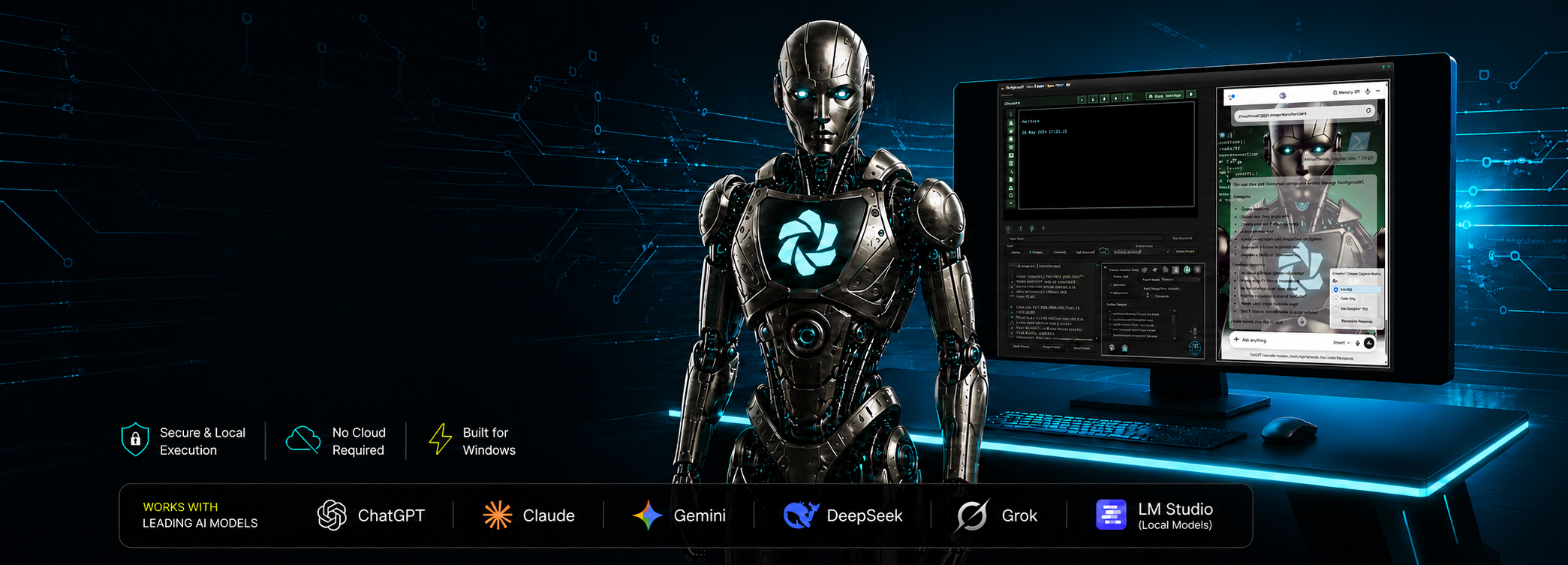
WinAgentGPT ships with a tabbed browser built around six switchable AI model slots. Out of the box these point at the major chat services — ChatGPT, Claude, Grok, DeepSeek, Google AI Studio, LM Studio for local models — but each slot is just a URL you can change.
Each slot has its own:
- browser profile and session, so you stay logged in
- prompt injector script, which knows how to type into that particular site
- scraper script, which knows how to read that particular site’s replies
- active/inactive icon on the toolbar
You can swap models mid-conversation by voice — “switch to Claude” — which means you can hand the same task to a different AI when one gets stuck, and route work to whichever model you’re paying for.
Alongside the AI slots the browser is a genuine browser: multiple tabs, favicons, bookmarks with a bookmark bar, a home page, session save and restore so yesterday’s tabs come back, page zoom and layout controls, right-click context menu handling, and keyboard shortcuts.
Tabs can be given names. Once a tab has a name, both you and the AI can target it — run this in the tab called “flowboard”, switch to the tab whose title contains “invoice”, open this URL in a new tab or reuse the one that’s already there. This is what allows multi-tab automations to be reliable instead of guessy.
Talking to it
Voice is a first-class input, not a bolt-on.
- Three listening modes. Constant (always hearing you), wake word (it ignores you until you say its name), or click-to-talk (it listens only while you ask it to).
- A name. The assistant has a configurable name — “Computer” by default — which doubles as the wake word. It’s addressed by name, and it knows its own name in prompts.
- Automatic submission. Speech can be sent straight to the model or held for you to review first, with an adjustable delay so you can finish your sentence.
- Reading back. Replies can be read aloud with a chosen system voice, or routed through a web-based text-to-speech page for higher-quality voices. Individual replies can be marked “don’t speak this” so it stays quiet when speaking would be noise.
- Voice control of the app itself. A vocabulary of spoken commands operates WinAgentGPT directly: show or hide settings, show or hide the browser, show prompts, show commands, show the last command, read the last output aloud, stop talking, stop listening, activate voice recognition, show or hide the mouse grid, switch models, and a “show yourself” command that pulls the window back to the front from wherever it’s hiding.
- A wake-word action. You can nominate one saved command to fire the instant the wake word is heard, and another to fire automatically when the app starts.
The command and prompt library
This is the part that makes it feel personal rather than generic.
WinAgentGPT keeps three libraries of saved text: Commands (PowerShell), JavaScript, and Prompts (instructions for the AI). You save anything you want, give it a name, and that name becomes both a menu entry and a spoken trigger.
The clever piece is the [keyword] wildcard. A saved item can be named something like “write an application in c sharp that [keyword]”. Say or type “write an application in c sharp that converts temperatures”, and the app matches the pattern, drops your words into the placeholder, and fires the whole prepared instruction at the model. One saved file becomes an infinite family of commands.
Supporting that:
- Aliases, so several different phrasings can reach the same command.
- Placeholders that get filled in automatically at run time — the agent’s name, the chosen voice, the model’s last reply, the model’s last spoken reply, a search URL for local models.
- Chaining. A configurable joining phrase (by default “and then”) lets you say several things in one breath, and a wait phrase (“wait for”) lets you insert pauses — “open notepad and then wait for 2 seconds and then type this”.
- Programmatic triggering, so a saved prompt or command can be launched from inside the app’s own logic rather than only by hand.
Agent Memory
The app maintains a set of named variables that persist across the conversation. Anything the AI or a workflow produces can be stored under a name, and any later step can pull it back out by writing [variableName] into almost any text field.
Variables can be set, appended to, cleared, waited on (pause until this changes), extracted from text with pattern matching, pulled out of JSON, or read from and written to the clipboard.
Crucially, a running PowerShell script can push a value back into memory itself by printing a special directive line. That’s how a command’s real-world result — a file path, an exit code, a fetched number — becomes something the next step can use.
Seeing and clicking: the Mouse Grid
Not everything on Windows is reachable by command line. For everything else, WinAgentGPT gives the AI eyes and a hand.
The app can capture the desktop and send the image to the model as a picture. Overlaid on that image is a numbered 3×3 grid. The AI picks a number, and the grid subdivides — not moving the cursor toward a target, but shrinking the searchable area down around it. A few rounds of this and the cursor is sitting precisely on a button.
The available actions are: show grid, hide grid, select a cell (or a whole sequence of cells at once, like “1-4-7”), left click, right click, double click, undo the last selection, and full reset if it goes wrong.
The discipline around it is baked into the prompt: act once, wait, take a fresh screenshot, look again, and never continue on a stale picture. If a target application has crashed or vanished, relaunch it and re-verify before doing anything else. Once the goal is achieved, hide the grid.
The app minimises itself out of the way during capture and restores afterwards, so it isn’t photographing its own window. Beyond the grid, the AI can also be asked yes/no questions about what’s currently on screen, and can be shown a live webcam snapshot to describe or make decisions from.
Building software on the fly
Two included techniques let the AI write and run actual applications on request.
In memory. The AI writes C#, wraps it in a PowerShell script, and the code is compiled and executed directly in memory. Nothing is written to disk, the compiled types stay available for the rest of the session, and a full graphical Windows application can appear seconds after you described it.
On disk. For anything you want to keep, the same idea writes a source file into a dedicated folder in your Documents, compiles it into a real .exe with the .NET compiler, and offers to run it with a confirmation dialog.
FlowBoard: automation you can see
For work that should happen repeatedly and reliably, WinAgentGPT includes FlowBoard — a visual workflow canvas where you drag nodes onto a board and wire them together left to right. Workflows save as files, can be run by hand, and can be called as subroutines from inside other workflows.
The AI can build these for you. Describe what you want and it writes the whole board — nodes, positions, settings, connections — and loads it straight onto the canvas, optionally pressing Play afterwards.
There are around seventy-four node types. Grouped by what they do:
- Core flow — start, pause, stop, end with a notification, run another workflow, and on-canvas comments.
- Logic and loops — branch on a condition (contains, equals, empty, regex, greater than, and so on), route to one of many named paths, repeat a fixed number of times, repeat while a condition holds, repeat once per item in a list, and stop to ask the human a question mid-run.
- Agent Memory — set, append, clear, wait for change, extract with patterns, parse JSON, map JSON paths into variables, and clipboard read/write.
- Files and folders — read, write, append, list, wait for a file matching a pattern to appear, and watch a folder for changes. Writes are confirmed as genuinely finished before the flow moves on, so nothing races ahead of the disk.
- Web and browser — open, switch and manage tabs; wait for an element to appear; click and type into pages; run custom JavaScript; and scrape a page for text, HTML or attributes.
- Network and APIs — make HTTP requests through the app itself, avoiding browser restrictions. Credentials live in Windows Credential Manager and are referenced by account name, never written into the workflow. Reusable API templates let you define an operation once and just fill in the parameters.
- Email — send through a configured account, search and read an inbox, wait for a message matching filters to arrive, and pull down attachments.
- SMS — send and receive text messages through an attached mobile dongle: read the inbox, outbox and unread items, wait for a new message, mark as read, delete.
- Serial — send to a COM port, send and wait for a reply, or just listen. Real hardware, robots, sensors, embedded boards.
- AI nodes — send a prompt and wait for the answer, ask a yes/no question and branch on it, ask about the current screen, ask about the webcam, and attach local files to the AI for it to read.
- Verification and recovery — a dedicated node that checks evidence and routes five ways: success, failure, retry, needs-a-human, or error. It can check text, the clipboard, the last error, or ask the AI to judge a screenshot. There’s a lighter assertion node for simple checks, plus a single global catch-all handler that picks up any unhandled failure anywhere on the board and tells you which node broke and why.
- System commands — stage and then execute PowerShell, stage and then execute JavaScript in the scratchpad, and send named commands to the host. The staged-then-executed pattern exists so the flow genuinely waits for a script to finish rather than assuming.
- Logging and notification — write to the agent log, start a fresh log, send the accumulated log to the AI for interpretation, speak text aloud, and raise a Windows notification.
- Utilities — arithmetic, date and time handling (formatting, adding, subtracting, differences), text transformation, list and array operations, CSV parsing, JSON formatting and repair, and pulling key-value pairs out of loose text. These exist deliberately so that everyday data-shuffling doesn’t require dropping down to a script.
A dozen node types are explicitly flagged as having real-world consequences — sending mail or texts, deleting messages, writing files, running commands — and the AI is instructed not to reach for them unless clearly asked.
Permission and safety
The app is built on the assumption that you should always know what’s about to happen.
- Nothing runs unannounced. Every PowerShell command and every piece of JavaScript surfaces a permission panel showing exactly what will run. You allow it or you don’t.
- Permanent access is opt-in, separately for PowerShell and for browser JavaScript, and it can be revoked.
- Destructive commands get flagged. A separate warning appears when a command contains something irreversible — deleting, force flags, killing processes, registry writes, changing execution policy.
- Loop detection. The app watches for the conversation going in circles and steps in.
The first-run demonstration
New users get a guided thirty-second demo rather than a manual.
A dialog explains what’s about to happen. Then the app runs the loop end to end while a narrator overlay floats above the window and describes each step in plain language: the AI is preparing a PowerShell command; the command has arrived and needs your permission; it’s running and the result is going back to the AI; now it’s preparing JavaScript; here’s the second permission request; the browser has sent its message back and the loop is complete.
The demo tracks its own progress t
It finishes by asking what you’d like to do: PC tasks with PowerShell, web tasks with JavaScript, visual automations with FlowBoard, or just explore. You can turn the demo off at startup, and it remembers.
What it feels like to use
At the simplest level it’s a chat window you can talk to, that happens to be able to do things.
Ask it the time and it runs a command and tells you. Ask it to clean up your downloads folder and it writes the script, shows it to you, and does it once you agree. Ask it to make you a little calculator and thirty seconds later a calculator is on screen. Ask it to click the Windows button and it takes a photograph of your desktop, narrows in on the target, and clicks it. Ask it to text you when a file arrives, and it builds a workflow that watches the folder and sends the message.
Underneath, the same three things are always happening: the AI proposes, you approve, the machine reports back. Everything else in WinAgentGPT — the six models, the grid, the libraries, the memory, the workflow canvas, the email and SMS and serial channels — is an extension of how far that loop can reach.
What it isn’t
It isn’t a locked-down sandbox, and it doesn’t pretend to be. It runs with your permissions on your machine. It isn’t an API wrapper — it drives real chat sessions in a real browser, which is why you can see everything it’s being told. And it isn’t a fixed feature set: the command libraries, the prompt files, the plugin folder, the model URLs and the workflow canvas are all yours to extend.